A dead phone by 2pm is frustrating — and avoidable. Here are the settings, habits, and tricks that genuinely extend battery life on iPhone and Android.
Nothing's worse than watching your battery drop toward zero with hours left in the day. Whether you have an iPhone or an Android, there are ways to get a lot more out of every charge, and most take under a minute to set up.
We replace hundreds of batteries a year, so we know what drains them and what doesn't.
The Quick Wins — Do These First
01
Turn down your screen brightness
Your display is the single biggest battery drain on your phone. Dropping brightness from 100% to 50% can extend battery life by 20–30%. Enable auto-brightness (Settings → Accessibility → Display & Text Size → Auto-Brightness on iPhone) and let the phone do the work.
02
Shorten screen timeout
If your screen stays on for 2 minutes every time you set it down, that adds up fast. Set it to 30 seconds. On iPhone: Settings → Display & Brightness → Auto-Lock → 30 Seconds. On Android: Settings → Display → Screen Timeout.
03
Turn off 5G when you don't need it
5G radios use significantly more power than 4G LTE — especially when searching for a 5G signal in areas with weak coverage. If you're indoors or in a low-coverage area, switch to LTE. On iPhone: Settings → Cellular → Cellular Data Options → Voice & Data → LTE.
04
Disable Background App Refresh
Apps refreshing in the background when you're not using them is a silent battery killer. On iPhone: Settings → General → Background App Refresh → turn it off entirely, or selectively for apps you don't need updating constantly. On Android: Settings → Apps → select app → Battery → Restrict.
05
Check which apps are using the most battery
On iPhone: Settings → Battery → scroll down to see per-app usage. On Android: Settings → Battery → Battery Usage. You'll often find one or two apps responsible for a disproportionate amount of drain — social media and navigation apps are frequent culprits.
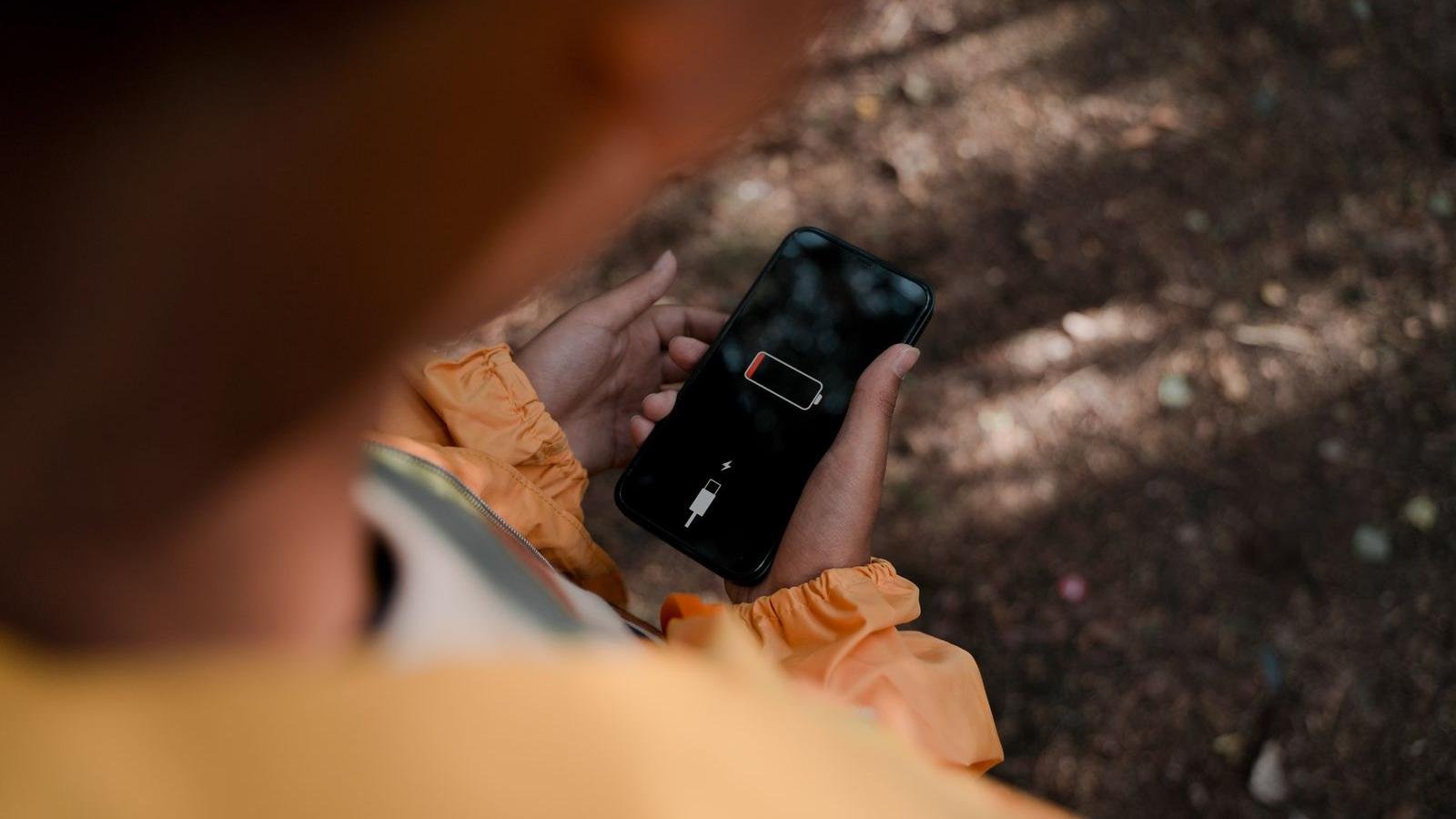
Most of these tips take just a few taps in your phone's settings. Photo: Lisa Fotios / Pexels
Settings to Enable Right Now
iPhone
Low Power Mode — Settings → Battery → Low Power Mode. Reduces background activity, mail fetch, and visual effects. Use it whenever you're running low or need to make your charge last.
Optimised Battery Charging — Settings → Battery → Battery Health & Charging → Optimised Battery Charging. Slows charging to 80% until you typically wake up, reducing long-term battery wear.
Reduce motion — Settings → Accessibility → Motion → Reduce Motion. Disables parallax effects and animations that use GPU power.
Fetch email less frequently — Settings → Mail → Accounts → Fetch New Data → set to Manual or Every Hour instead of Push.
Android (Samsung / Pixel)
Adaptive Battery — Settings → Battery → Adaptive Battery. Learns your usage patterns and restricts battery for apps you rarely use.
Dark Mode — on OLED screens (most modern Android flagships), dark mode saves battery because black pixels are switched off. Settings → Display → Dark Mode.
Battery Saver / Power Saving Mode — available on all Android phones. Samsung calls it Power Saving Mode, Pixel calls it Battery Saver. Enable it at 20% or lower.
Limit refresh rate — if your phone has a 120Hz display, switching to 60Hz saves meaningful battery. Settings → Display → Motion Smoothness → Standard.
Dark mode tip: Dark mode only saves battery on phones with OLED/AMOLED screens (most Samsung Galaxy phones and iPhone X and later). On phones with LCD screens, dark mode looks nice but doesn't actually save battery.
Habits That Make a Real Difference
Don't let it hit 0% — deep discharges stress lithium-ion batteries. Plug in before you hit 10%.
Don't charge to 100% every time — keeping your battery between 20–80% is the sweet spot for long-term health. Many phones now have settings to stop charging at 80%.
Keep it cool — heat is the enemy of battery life, both short-term capacity and long-term health. Don't leave your phone in a hot car, and take it out of its case when charging if it gets warm.
Turn off Wi-Fi and Bluetooth when you're not using them — these radios constantly scan for networks and devices, which uses power even when you're not connected to anything.
Use Wi-Fi instead of cellular when possible — Wi-Fi uses less power than a cellular data connection for the same data transfer.
Enable Airplane Mode in low-signal areas — when your phone has one bar of service it works the radios overtime searching for a signal. If you're in a dead zone for a while, Airplane Mode prevents this drain.
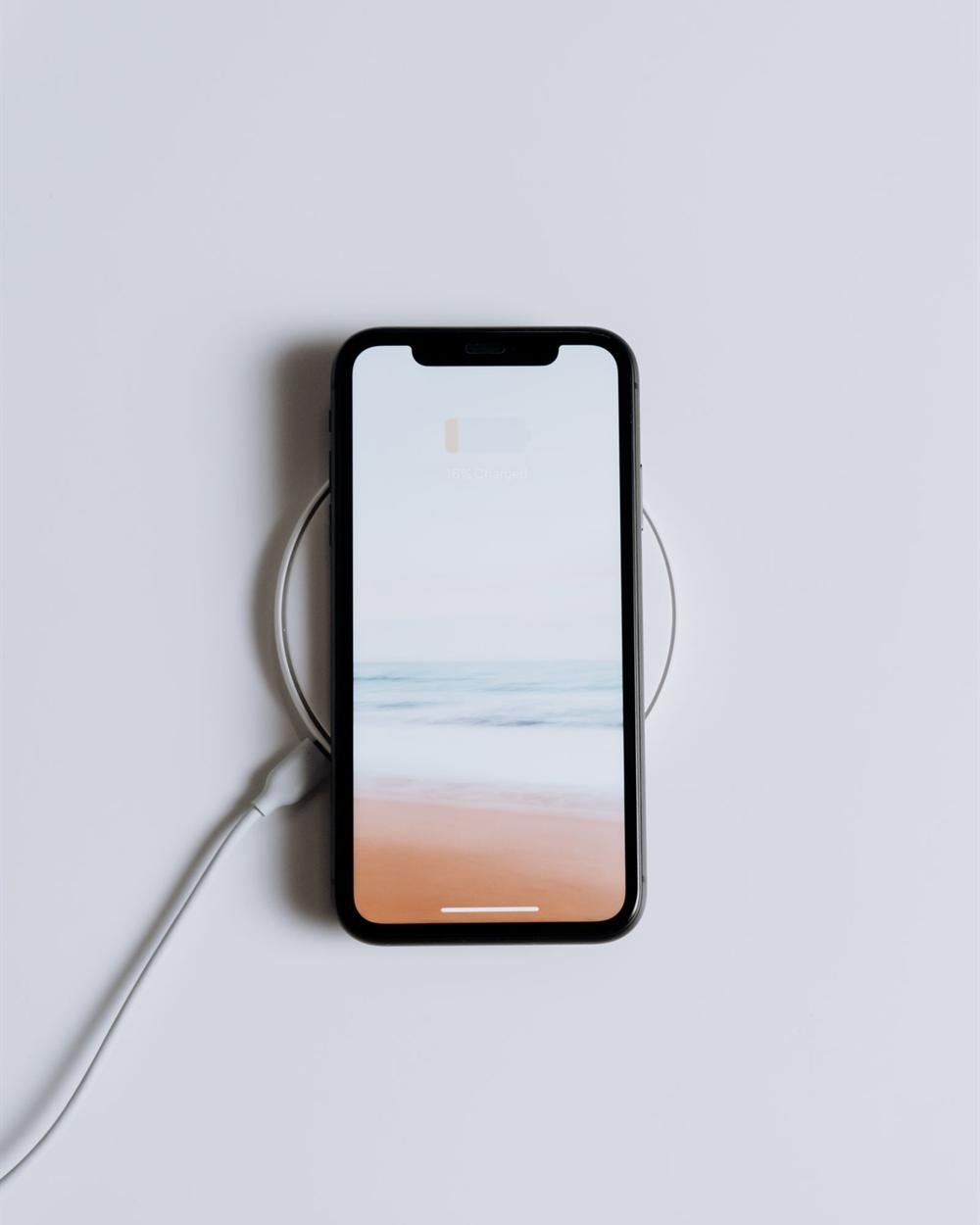
A phone on a wireless charger. Keep it cool while it charges. Photo: cottonbro studio / Pexels
What About Battery-Saving Apps?
Skip them. "Battery saver" apps on both iPhone and Android are largely useless — iOS doesn't give third-party apps the system access needed to actually manage other apps' battery use. On Android, many of these apps are themselves battery drains, or worse, adware. The built-in settings above are more effective than any app.
If you've done all of this and your battery still doesn't last the day — the problem isn't your habits, it's the battery itself. Lithium-ion batteries degrade over time and lose capacity. If your phone is 2+ years old and battery life has noticeably dropped, a battery replacement will make it feel new again.
When to Replace Your Battery
On iPhone, go to Settings → Battery → Battery Health. If it's below 80%, Apple recommends service — and we agree. On Android, download AccuBattery to measure actual capacity vs. original.
At Empire Wireless Mobile, battery replacements start at $49 for most iPhone and Samsung models and take about 30 minutes. If you otherwise like your phone, it's a cheap way to keep it going.
Battery Still Not Lasting? We Can Fix That.
A battery replacement takes 30 minutes and can make your phone feel brand new. Walk in to 876 Danforth Ave — no appointment needed.
The biggest drains are screen brightness, background apps and the cellular radio. Fix those three and you'll notice the difference right away.
If your battery still won't hold a charge, settings can't fix a worn-out battery. Come see us at 876 Danforth Ave, Toronto. We're open Monday to Friday 12–7pm and Saturday 12–5pm.