Your PS5 powers on but the TV shows nothing. What to check, and when it needs a repair.
Empire Wireless Mobile·July 25, 2026·7 min read
Home › Blog › PS5 Black Screen or No Display — Causes & Fixes
You press the power button, your PS5 beeps, the light pulses — but your TV shows nothing. Just a black screen. It's one of the most frustrating console issues, and unfortunately one of the most common ones we see at our shop on the Danforth.
Most PS5 black screens have a simple cause. Work through the list below in order.
First — Is It Actually On?
Before anything else, make sure the PS5 is actually booting. Listen for the startup beep and watch the LED indicator. White light = running. Orange = rest mode. Blinking blue = attempting to start. If it's blinking blue and then going to white without any picture, that confirms the console is on but the display signal isn't getting through.
Common Causes & Fixes
01
Wrong HDMI input or cable issue
Check your TV is on the right HDMI input. Try a different HDMI port on your TV. Try a different HDMI cable — PS5 uses HDMI 2.1 but most cables work. This solves a surprising number of "no display" calls we get.
02
Resolution mismatch (most common cause)
If you changed your PS5's output resolution to 4K or 8K and your TV doesn't support it, you'll get a black screen. Fix: hold the PS5 power button until you hear a second beep (about 7 seconds) — this boots into Safe Mode where you can reset the video output to default.
03
HDR or 4K output settings
In Safe Mode, go to Change Video Output and disable HDR or 4K. Some TVs can't handle the PS5's default output settings and go blank. Set to 1080p first, confirm it works, then increase from there.
04
Rest mode bug
There's a known PS5 bug where waking from rest mode causes a black screen. Try holding the power button for 10 seconds to fully power off (not rest mode), then restart. If this keeps happening, disable rest mode: Settings → System → Power Saving → Set Time Until PS5 Enters Rest Mode → Don't Put in Rest Mode.
05
HDMI port damage on the PS5
The PS5's HDMI port is notoriously fragile. The pins inside bend easily if a cable is inserted at an angle or if the console was moved with the cable plugged in. Shine a flashlight into the port and look for bent or missing pins. If you see damage — this needs professional repair.
06
Overheating shutdown
If your PS5 is overheating it may boot to black and then shut off to protect itself. Make sure it's in an open, ventilated space — never in an enclosed cabinet. Check that the vents aren't clogged with dust. (See our article on PS5 airflow for more on this.)
07
GPU or APU failure
In more serious cases — especially after a drop, power surge, or liquid exposure — the GPU/APU on the PS5 motherboard can fail. This causes a persistent black screen that no setting change will fix. This requires board-level repair by a technician.
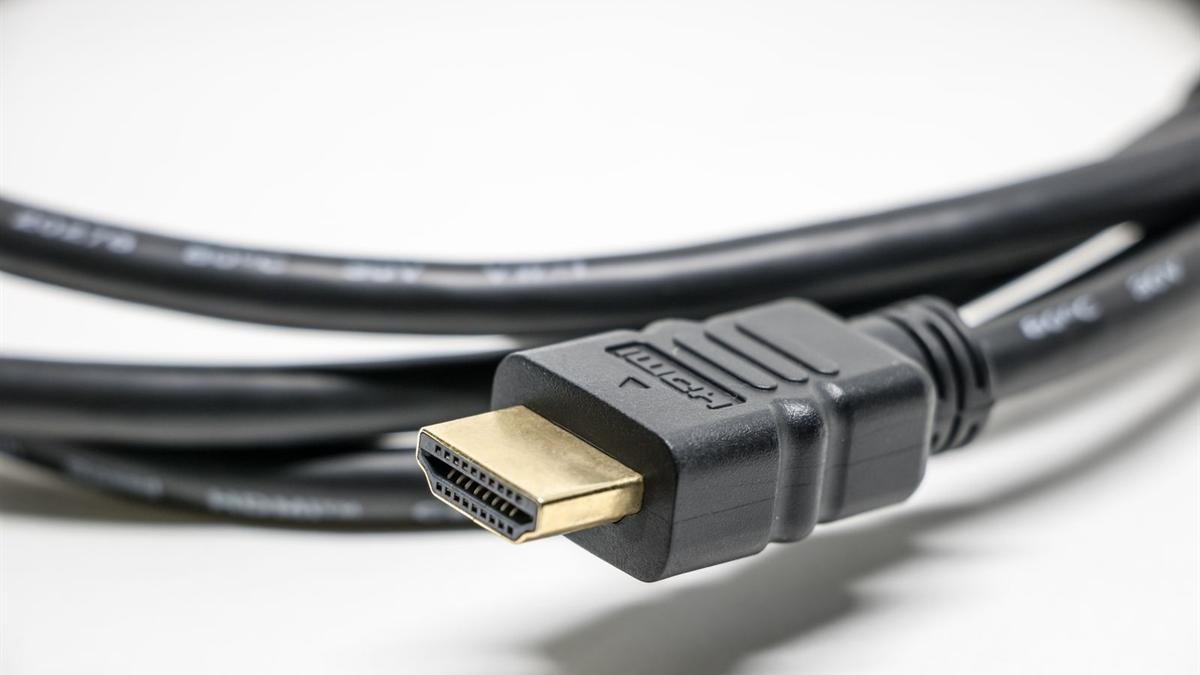
A loose or damaged HDMI cable is one of the first things to check. Photo: Srattha Nualsate / Pexels
How to Boot PS5 in Safe Mode
Safe Mode lets you fix video output issues without seeing the screen first:
Fully power off your PS5 (hold button until it beeps twice and LED goes off)
Press and hold the power button — release after the second beep (about 7 seconds)
Connect your controller with a USB cable and press the PS button
Select Change Video Output → Change HDMI Output
Tip: If Safe Mode also shows a black screen, the issue is hardware — either the HDMI port, the GPU, or the display output circuit. At that point it's time to bring it in.
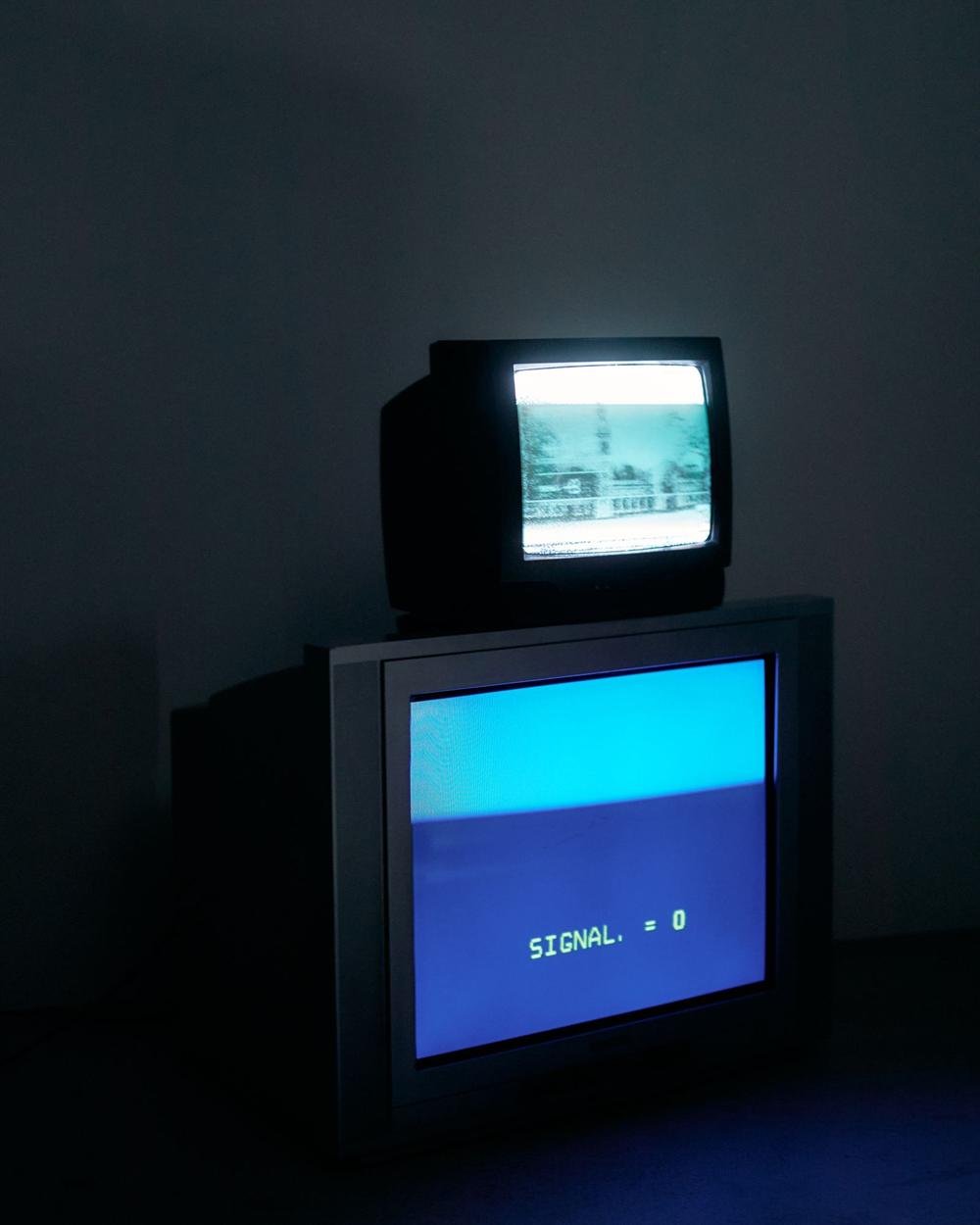
No signal on the screen doesn't always mean the console is broken. Photo: cottonbro studio / Pexels
When to Bring It In
If you've tried all of the above and still have a black screen, the issue is almost certainly hardware — a bent HDMI port, damaged GPU, or faulty display output circuit. These are all repairable at our shop. We work on PS5 consoles regularly and offer free diagnostics so you'll know exactly what's wrong before we start.
PS5 Still Showing a Black Screen?
Bring it in to 876 Danforth Ave for a free diagnostic. We repair PS5 HDMI ports, GPU issues and more.